
Build, Test & Troubleshoot WordPress Sites on Your Own Computer Before Going Live
Want to test a WordPress change without risking your live website?
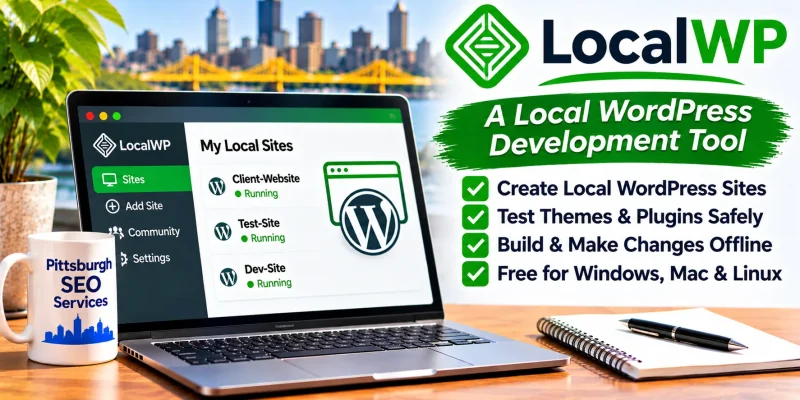
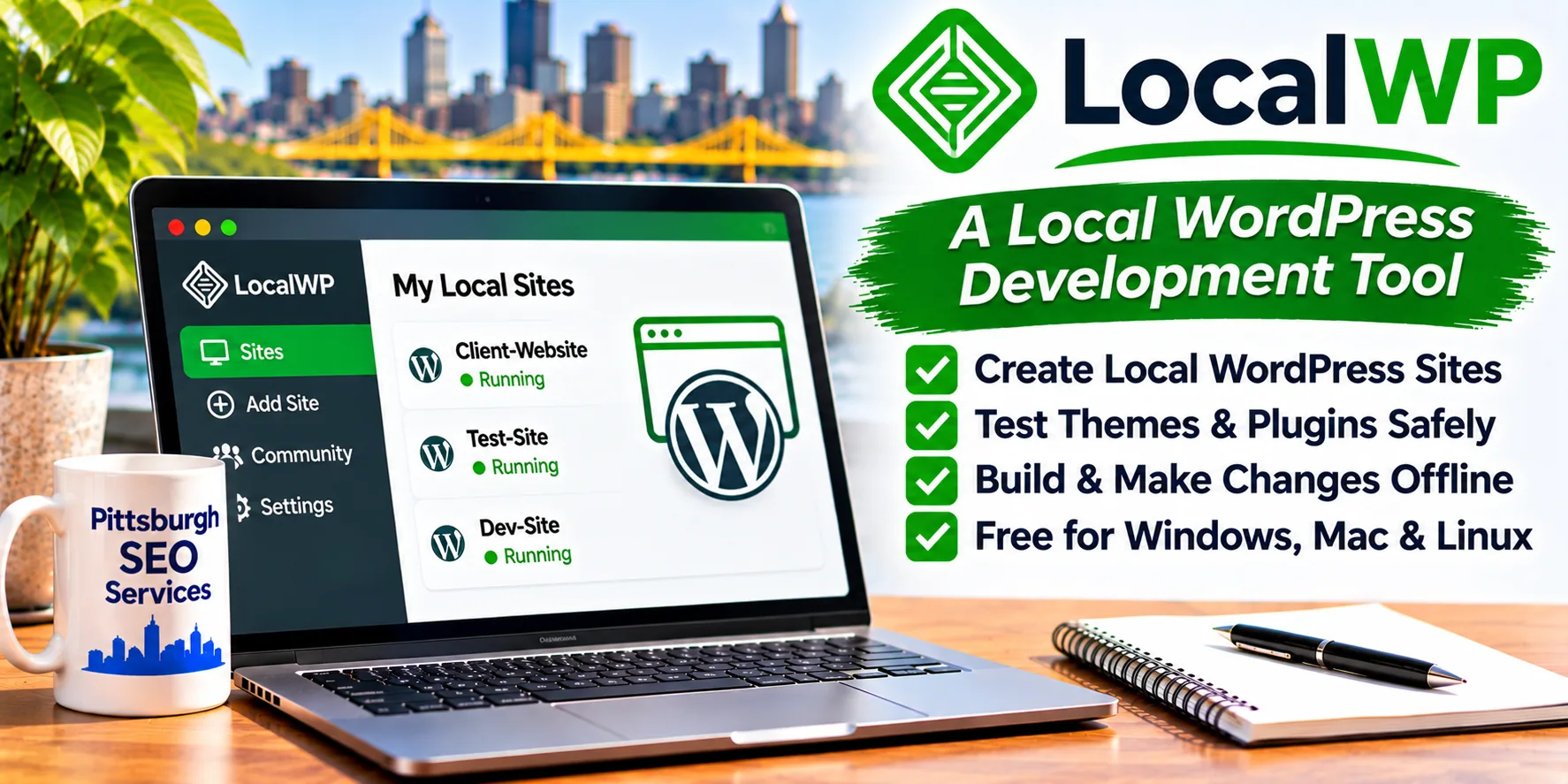
LocalWP (often called Local) is a desktop application from WP Engine that lets you create and run WordPress sites on your own computer. You can build, test, and troubleshoot a site safely before changing anything on your live website.
It is popular with developers, designers, and agencies who want a fast, repeatable local WordPress workflow.
Cost: Free (optional paid features may be offered)
Developer: WP Engine
Platform: Windows, macOS, and Linux (desktop application)
Category: WordPress Tools
Official Website: https://localwp.com/
LocalWP is downloaded from the official website. Supported systems, features, and pricing are set by WP Engine and may change, so check the official site for current details.
What Is LocalWP?
LocalWP sets up the server software WordPress needs on your computer and lets you create a site in a few clicks.
Because the site runs locally, you can experiment with themes, plugins, and code changes without affecting your live visitors.
It is useful for developers, agencies, and site owners who want a safe place to test updates.
Key Features of LocalWP
One-Click WordPress Sites
Create a new local WordPress site with a chosen PHP version and web server configuration.
Safe Testing Environment
Try plugin updates, theme changes, and custom code without touching your live site.
Site Cloning and Blueprints
Duplicate a site or save a starting setup so new projects begin with your preferred configuration.
Local SSL and Domains
Use local domain names and HTTPS to better mirror how your live site behaves.
Live Links
Share a temporary link to a local site so a client or teammate can review it. Availability may depend on current features.
Hosting Connections
Connect with supported hosting platforms to push or pull sites, where available.
How to Get Started With LocalWP
Getting started generally takes only a few steps.
- Visit https://localwp.com/ and download the version for your operating system.
- Install and open the application.
- Create a new WordPress site and choose your settings.
- Open the site and its WordPress dashboard.
- Install a theme or plugin, or import a copy of an existing site.
- Test your changes thoroughly.
- Move approved changes to your live site using your preferred process.
Safety tip: Keep backups of your live site before moving any changes. Testing locally lowers risk but does not replace backups.
Why a Local WordPress Environment Matters
Updating a plugin or editing code directly on a live site can break pages or interrupt sales.
A local copy gives you a place to find those problems first.
LocalWP can help you identify:
- Plugin conflicts before they affect visitors.
- Theme or PHP version compatibility problems.
- Slow queries or heavy plugins.
- Broken layouts after an update.
- Errors in custom code.
Testing first can reduce downtime and make technical SEO changes safer to roll out.
LocalWP & AI Search Visibility
A stable, error-free website is easier for people and automated crawlers to access.
LocalWP helps you test changes so mistakes are less likely to reach your live site.
However, using it does not make your website appear in Google AI Overviews, Microsoft Copilot, ChatGPT, or other AI-generated answers.
It supports safer website maintenance rather than search visibility itself.
LocalWP vs. Testing on a Live Site
Local testing is generally the safer option.
| Factor | LocalWP | Live Site Testing |
|---|---|---|
| Risk to visitors | None | High |
| Speed of experimenting | Fast | Cautious |
| Needs a computer install | Yes | No |
| Mirrors live server exactly | Close, not identical | Exactly |
| Best for | Development and testing | Final verification only |
Our recommendation: Test locally first, then verify on a staging copy or the live site with a backup in place.
Common Issues When Working Locally
Most local problems have simple causes.
Site Will Not Start
Check for port conflicts or other software using the same ports.
Plugin or Theme Errors
Disable recently added plugins and test one at a time.
Differences From Live Server
Match PHP and database versions to your hosting where possible.
Large Site Imports
Large sites may need more time and disk space to import.
Frequently Asked Questions
Is LocalWP free?
Local is offered free by WP Engine. Some optional services may be paid, so check the official site.
Which systems does it support?
It supports Windows, macOS, and Linux. Check the official site for current versions.
Do I need a WP Engine account?
Core use does not require hosting with WP Engine, though an account may be needed for certain features. Verify on the official site.
Can I copy my live site into it?
Yes. You can import a site backup or use supported tools to bring a copy local.
Will it improve my SEO?
Not directly. It helps you test changes safely.
Is it a downloadable program?
Yes. It is a desktop application downloaded from the official website.
Access LocalWP
Developer: WP Engine
Software Type: Desktop WordPress development application
Price: Free (optional paid features may be offered)
Installation: Download and install on Windows, macOS, or Linux
Account: Optional for core use (verify)
Official Access: https://localwp.com/
About This Software Listing
This independent software resource is published by Pittsburgh SEO Services LLC, a digital marketing and SEO company founded by Jon Crain in 2001.
We share WordPress tools and website optimization resources to help business owners understand safer website maintenance and technical SEO.
Need help with WordPress development, testing, or technical SEO?
Explore our Pittsburgh SEO Services or contact us.
Phone: 412-250-7965
LocalWP is developed and maintained by WP Engine. Pittsburgh SEO Services LLC is an independent software directory publisher and is not affiliated with WP Engine.