
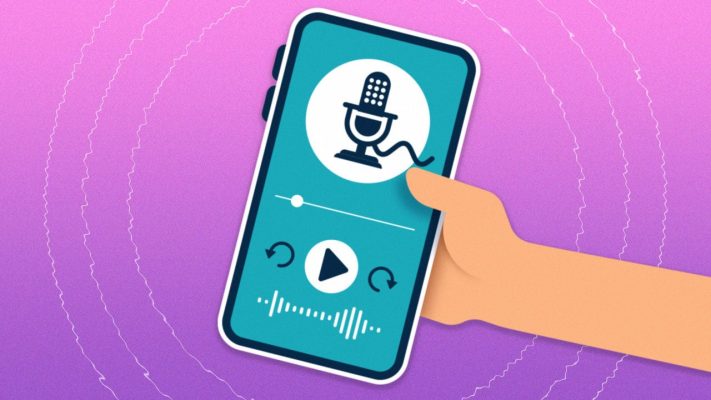
Audio & Podcast Player Plugins for Squarespace — Stylish, Feature-Rich Audio Playback
Audio & Podcast Player Plugins for Squarespace are third-party tools and embed widgets that let you display beautiful, customizable audio players and podcast feeds on your Squarespace site — with support for playlists, episode lists, streaming, and subscribe links. These add audio presentation layers that go far beyond Squarespace’s basic Audio Blocks, giving you greater control over layout, design, and user experience.
Squarespace doesn’t use a WordPress-style plugin system. Most audio enhancements are provided by external services/widgets that you configure online and embed into Squarespace using a Code Block or Settings → Advanced → Code Injection.
What Audio & Podcast Player Plugins Do
These tools let you:
Embed single audio tracks or playlists
Display podcast episode lists with play, skip, and subscribe options
Customize colors, layouts, and player controls
Integrate with major platforms like Spotify, Apple Podcasts, SoundCloud, YouTube Music, etc.
Offer responsive playback on desktop and mobile devices
Show download & subscribe buttons for listeners
Increase engagement with audio content like music, interviews, voiceovers, and podcasts
Popular Audio & Podcast Player Widgets Compatible with Squarespace
Elfsight Audio Player Widget
Elfsight Audio Player allows you to create responsive, customizable audio players for embedding on your Squarespace site. You can add multiple tracks, choose layouts (playlist or single player), colors, and branding — then embed the player in any page or footer.
- Key Features
- Single audio or playlist mode
- Custom colors and control styles
- Responsive & mobile-friendly
- Support for mp3/streaming sources
- Easy embed via code snippet
Create & Embed Elfsight Audio Player:
https://www.elfsight.com/audio-player-widget/squarespace/
(Configure your player and paste the generated code into your Squarespace page.)
Podbean Podcast Player Embed
If your audio content is hosted on Podbean, you can generate a custom embeddable player that shows episode lists, play buttons, and RSS subscribe links.
- Key Features
- Podcast feed embedding with episode navigation
- Subscribe links (Apple Podcasts, Spotify, Google Podcasts)
- Custom sizing & layout options
Generate Podbean Player Embed:
https://www.podbean.com/
(Use the Share → Embed Player feature for your show.)
SoundCloud Embed
SoundCloud offers embed codes for tracks and playlists you host on their platform. It’s excellent for music releases, spoken-word content, and podcasts that support SoundCloud feeds.
- Key Features
- Embed any public track or playlist
- Classic and visual player styles
- Plays directly on your site
Generate SoundCloud Embed Code:
https://soundcloud.com/
(Click Share → Embed on any track/playlist to get the code.)
Anchor / Spotify Podcast Embeds
For podcasts hosted on Anchor/FM or distributed via Spotify, you can embed a Spotify podcast player with episode lists and playback controls.
- Key Features
- Native Spotify embed players
- Displays show artwork and play controls
- Works for albums, singles, or podcast shows
Generate Spotify Embed:
https://open.spotify.com/
(Use Share → Embed on any episode/show/playlist to get the embed code.)
Why Use These on Your Squarespace Site
Adding rich audio and podcast players helps you:
Showcase music, interviews, lessons, storytelling, or podcasts
Keep visitors engaged longer with immersive content
Offer playback plus subscribe/download options
Present audio in clean, modern layouts that fit your brand
Embed feeds from major media platforms (SoundCloud, Spotify, Podbean) without coding
Squarespace’s native Audio Block is great for simple single tracks, but these plugins provide feature-rich players and playlists that elevate user experience and interaction.
How They Work on Squarespace
Choose your audio/podcast provider or widget (e.g., Elfsight, Spotify, Podbean).
Configure your player or get the embed code from the provider’s dashboard or share tools.
In Squarespace, open the page where you want the player.
Add a Code Block (or go to Settings → Advanced → Code Injection if you want site-wide scripts).
Paste the embed code and save.
Preview your site to ensure the player displays correctly on desktop and mobile.