
Working Hours
Mon - Fri 8AM to 5PM
Tracking Tag Checker (GA4, GTM, Google Ads & Meta Pixel)
Make sure your analytics and ad tracking are actually installed, so you can see which marketing brings in calls and form leads.
FREE FULL REPORT
See your full detailed results
Enter your name and email to unlock every check and fix on screen. We'll also email you a copy of the full report.
- Every check, with what passed and what to fix
- A copy of the full report in your inbox
- Optional: a free review from our team
How to Use the Tracking Tag Checker
- Enter your page URL. Test your home page and your thank-you or confirmation page.
- Click Check Tracking Tags. We scan the page code for each tag and pull out the IDs.
- Add your thank-you page (optional). We check that the same analytics runs there and look for GA4, Google Ads and Meta lead events.
- Compare the IDs with the ones in your Google Analytics, Google Ads and Meta accounts. A tag with the wrong ID sends data to someone else’s account.
Tags We Check
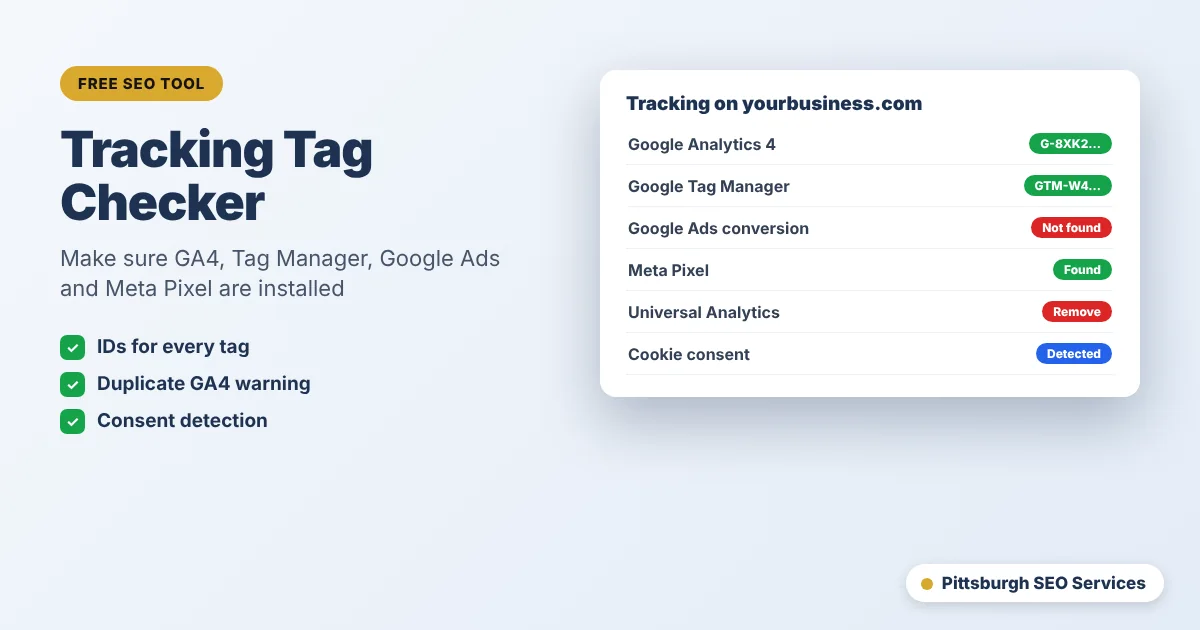
- Google Analytics 4: measures visitors, traffic sources and conversions. We flag pages with two different GA4 IDs, which can double-count visits.
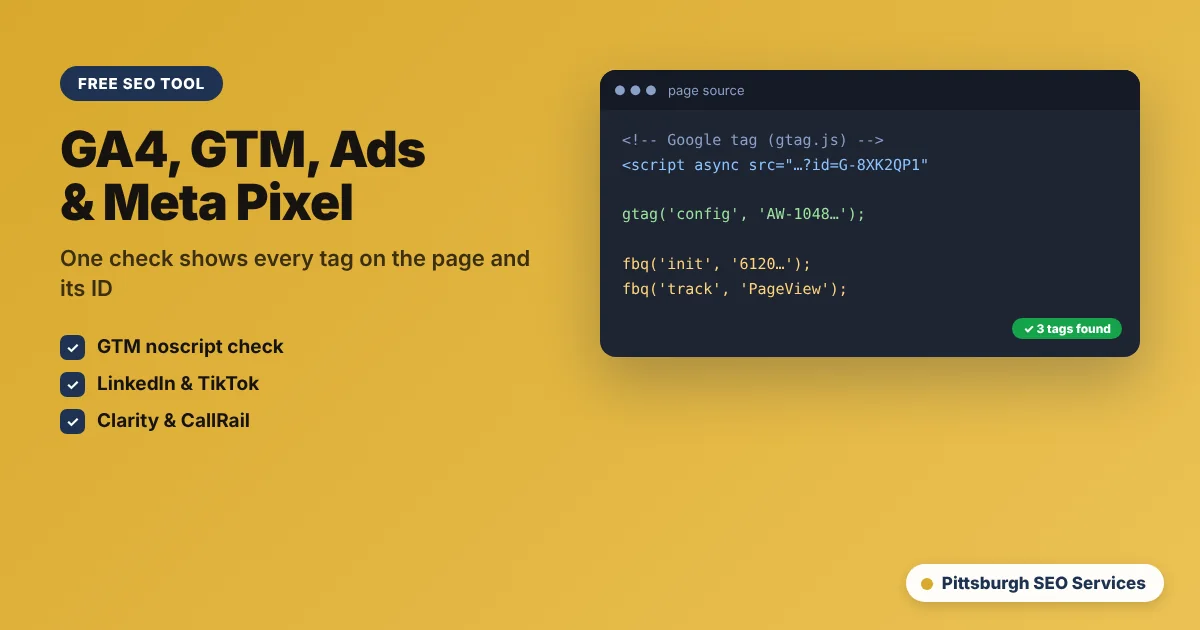
- Google Tag Manager, including the noscript part that belongs right after the opening body tag.
- Google Ads tag: needed to count leads and calls from your ads and to let Smart Bidding optimize for them.
- Meta Pixel for Facebook and Instagram ads, plus LinkedIn, TikTok and Microsoft Ads tags.
- Microsoft Clarity, Hotjar and CallRail when they’re present.
- Retired Universal Analytics code, which no longer collects anything.
- Cookie consent and Consent Mode signals.
Installed Isn’t the Same as Working
This checker reads the page code. A tag can be present and still not record conversions, for example when the form’s thank-you message appears without a page load, or when the conversion action in Google Ads isn’t set up. After installing tags, confirm them with Google Tag Assistant and the Realtime report in GA4, then submit a test lead.
What Good Tracking Looks Like for a Local Business
- GA4 on every page, with form submissions and phone-number clicks marked as key events.
- Google Ads conversion tracking for forms and calls if you advertise.
- Tracking links (UTM tags) on your Google Business Profile, emails and printed QR codes.
- One clean setup, ideally through Google Tag Manager, instead of codes pasted into several plugins.
Frequently Asked Questions
How do I know if Google Analytics is installed?
Enter your URL above. If we find a GA4 ID (it starts with G-), the tag is in the page code. Open the Realtime report in GA4 while you visit the site to confirm it’s collecting data.
It says GA4 is not in the page code, but I use Tag Manager.
That’s normal. GA4 often loads through Tag Manager, so it isn’t visible in the page code. Use Tag Manager’s Preview mode to confirm GA4 fires.
Why is having two GA4 IDs a problem?
If both send data to properties you use, visits and conversions can be counted twice or split across accounts. Keep it only if it’s intentional.
Do I still need the Universal Analytics code?
No. Universal Analytics stopped collecting data, so the old code only adds weight to your page. Remove it.
Does this tool track my visitors?
No. It only reads your page code once when you run the check.
Is the tracking tag checker free?
Yes. It is free and needs no account. To keep it fast and fair, there is a limit on how many checks one visitor can run, and you may be asked to complete a quick human check.
Sources and Further Reading
- Google Analytics Help: Set up Analytics for a website and/or app
- Google Tag Assistant
- Google Tag Platform: Consent mode overview
Related Free Tools and Guides
Need Help With This?
We install and test GA4, Google Tag Manager, Google Ads conversion tracking and call tracking, so every lead from your website, ads and Google Business Profile is counted.
Get a free website and local SEO review
Prefer to talk it through? Call 412-250-7965. Pittsburgh SEO Services LLC is based in Moon Township, PA and works with businesses in Western Pennsylvania, Ohio and West Virginia.